



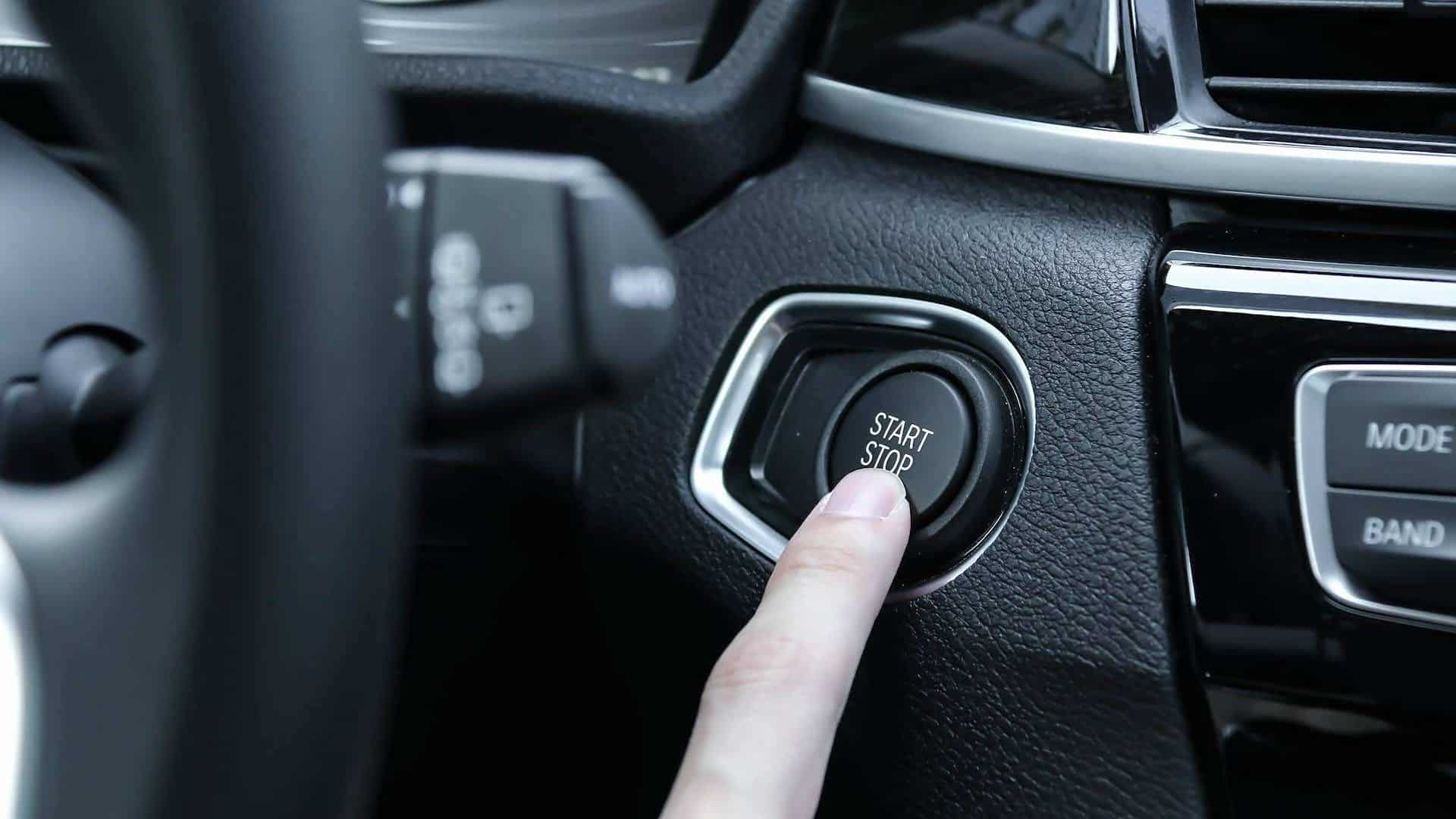
 Ensuring that your **NWD system version** is up-to-date is essential for optimal performance and security. In this guide, we'll walk you through the steps to check your **car infotainment system version** and ensure it's running the latest firmware and updates. By regularly checking your system version, you can enjoy the best features your **infotainment system** has to offer.
1. Start the Vehicle
Before you begin checking your **NWD system version**, you need to start your vehicle and power on the infotainment system. This is essential as the system settings are accessible only when the system is running. Ensure that the system is properly turned on and that the vehicle is in "on" or "drive" mode (depending on your car’s settings). This will enable access to the settings menu where you can check for system details.
2. Open the App Page
Once the **infotainment system** is powered on, navigate to the app page by tapping the app icon on the **infotainment screen**. This is where you can find options to check your **car system version** and access the settings where updates may be available.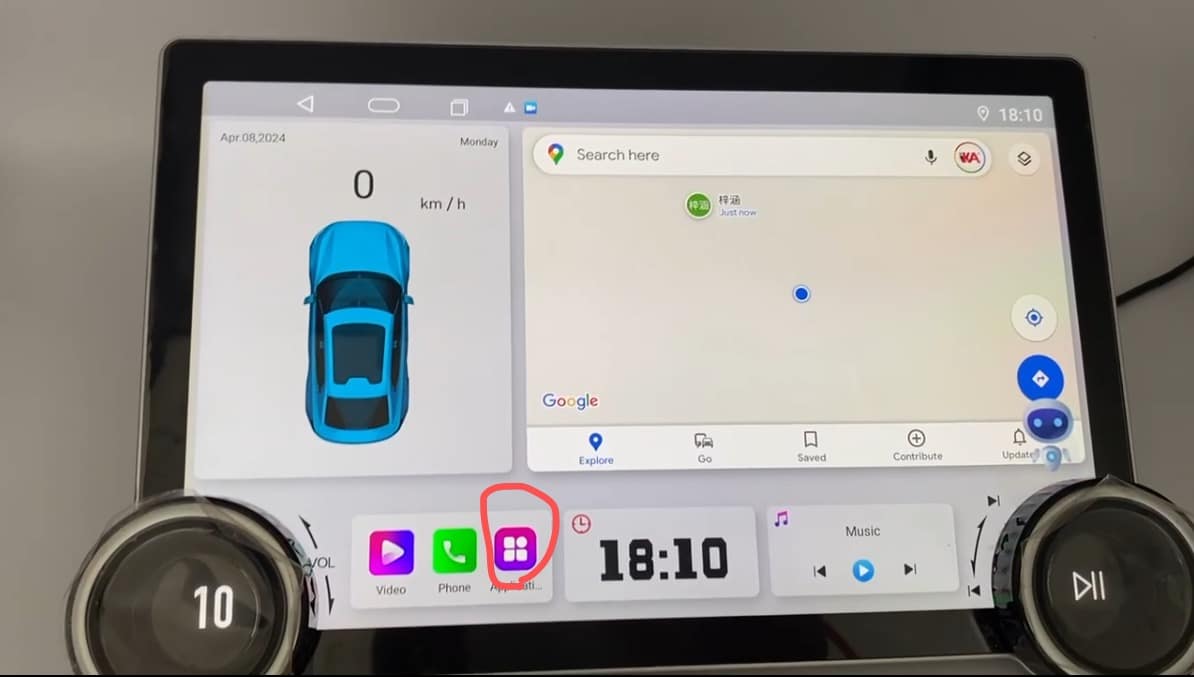
3. Open "About Device"
In the app settings, look for the option titled "About Device" or "System Information." This is where you'll find critical details about your **car’s infotainment system**, including the **system version**, firmware version, and model number. Navigate through the menu and select "About Device." This will provide you with a complete overview of your **NWD system's** information, allowing you to confirm whether it is running the latest software version.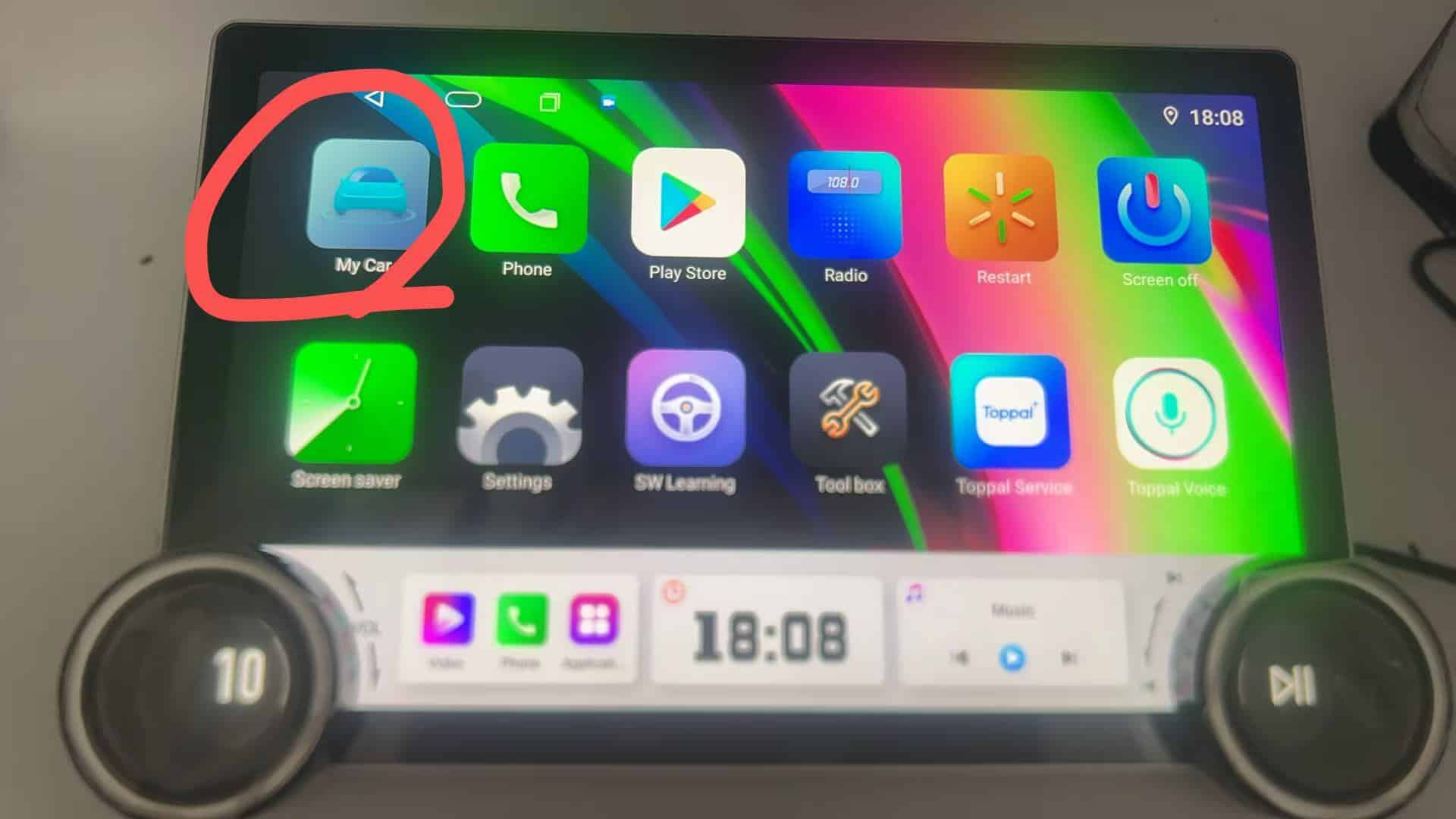
4. View System Version Information
After opening the "About Device" section, you can see the **system version** of your **NWD infotainment system**. This includes the current version number and any details about the system build and firmware updates. If your system shows an older version, it’s a good idea to proceed to check for available updates to ensure your system is equipped with the latest features and improvements. The version info typically appears at the top of this section or in a dedicated field titled "System Version" or "Firmware Version."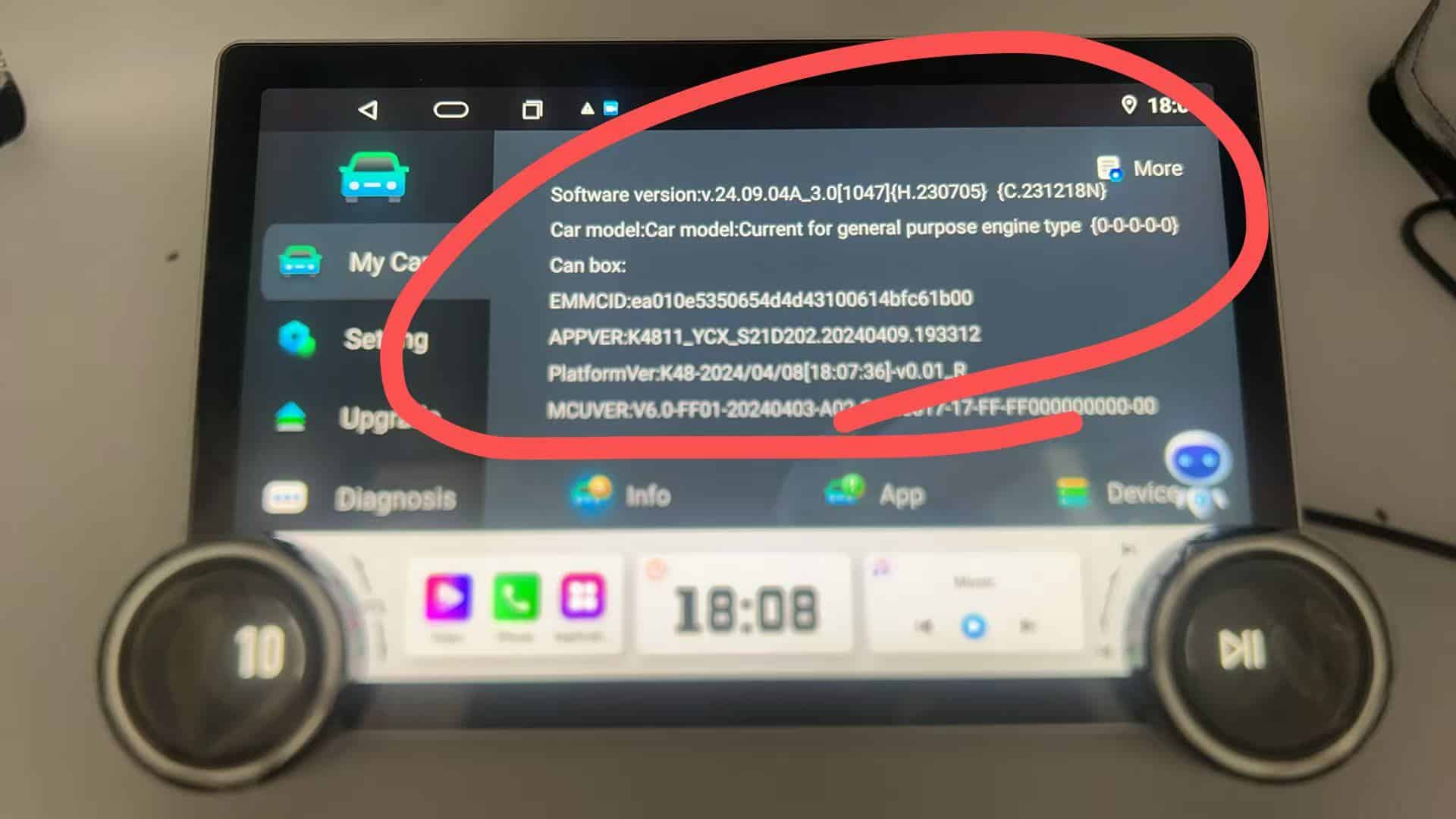
5. Save Screenshot
If you need to keep a record of your **NWD system version** for troubleshooting or future reference, you can easily take a screenshot of the system information. Most **infotainment systems** offer an easy way to capture the current screen. To take a screenshot, simply follow the on-screen instructions or press the designated screenshot button. This screenshot will capture your current system version, which can be helpful if you need to provide information to technical support or share it with a friend.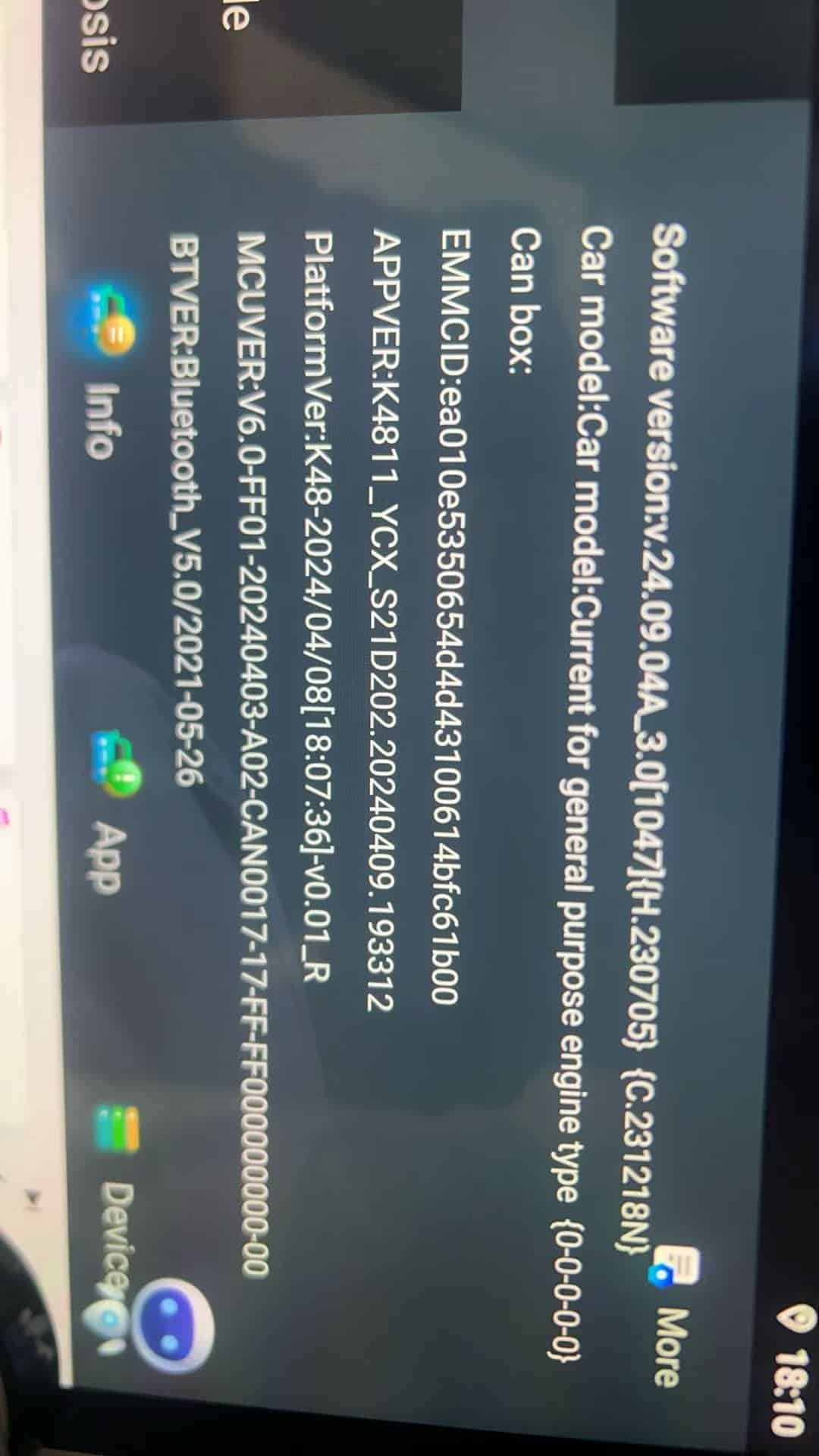

 English
  Русский
  العربية
  Español
  Türkçe
  Português
  Français
  O‘zbekcha
  Қазақ тілі
  Українська
  فارسی
فارسی  Kurdish (Kurmanji)
  Italiano
  Deutsch